Video Editing on Phone vs Desktop
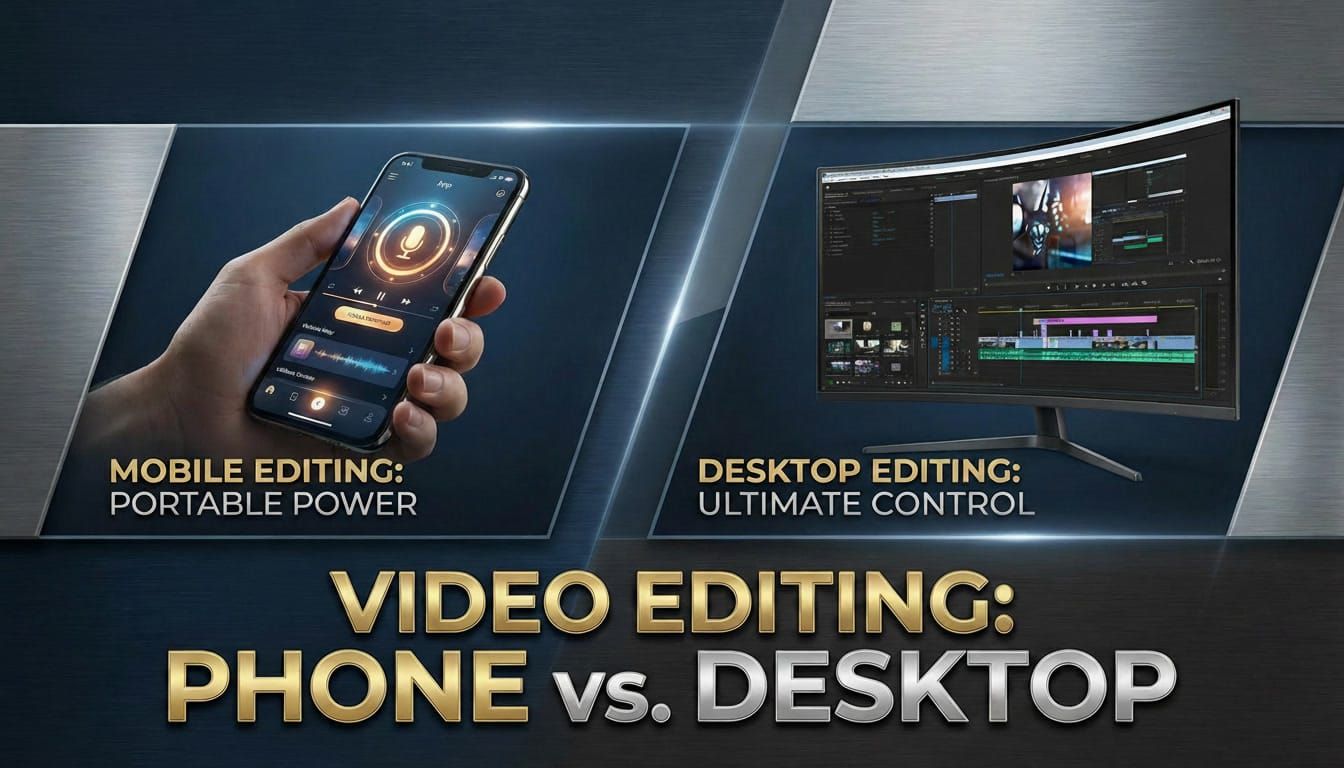
For the first six months I edited everything on my phone. CapCut, quick cuts, posted the same day I filmed. The videos looked fine. Then I started working on a three-minute music video — multiple camera angles, colour grade, precise beat sync — and my phone became a loading screen. Two crashes in one session, a 47-minute export that overheated the battery, and the final file still came out with compression artefacts.
Quick answer: phone editing is faster for short-form social content and sufficient for most TikTok, Reels, and Shorts work. Desktop is better for anything over two minutes, multi-track projects, serious colour work, or any video where final quality matters. Most working creators use both. The rest explains where each makes sense and where it breaks down.
What phone editing is actually good for
The phone is not a compromise. For a specific category of work it's the right tool — not because it's convenient, but because it fits the job.
Short-form social content — anything under 90 seconds for TikTok, Reels, or Shorts — is well-served by mobile editing. CapCut on phone was built for this format: vertical framing, auto-captions, beat-sync templates, trending transitions. AI features (background removal, auto-captions, smart cutouts) tend to hit mobile first, before the desktop version catches up. If you're posting daily and speed is the metric, phone editing wins.
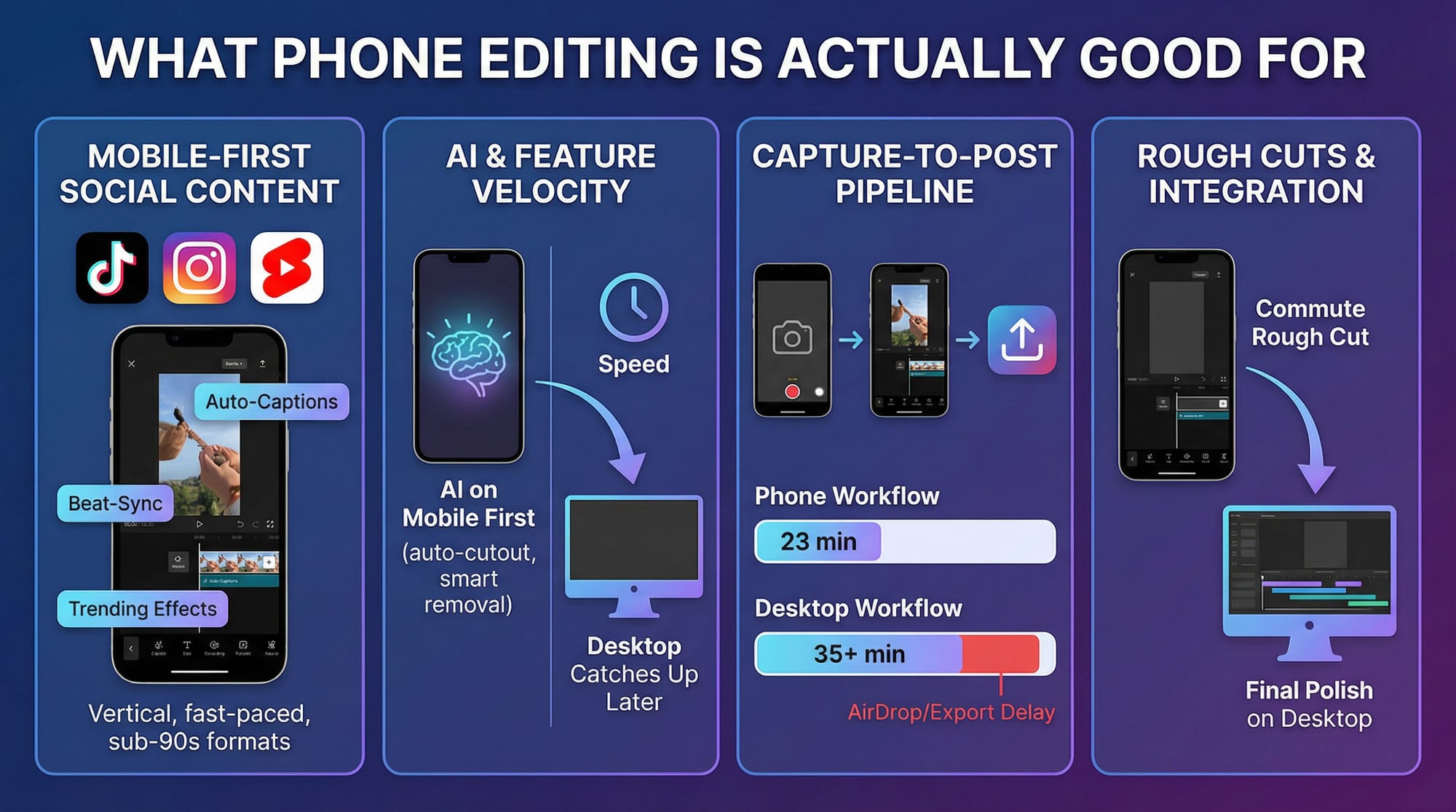
The capture-to-post pipeline is the other genuine advantage. Film on phone, edit on phone, post from phone. No file transfer, no format conversion, no waiting for an export to move across devices. I tracked one day-in-the-life Reel — first clip to posted: 23 minutes. The same clip on desktop would have been at least 35 minutes once I factored in AirDrop and export.
Phone editing also works well for roughing out structure. Film on a dedicated camera, AirDrop to the phone, rough-cut timing during the commute, bring the timeline to desktop for the finish. The rough cut on phone is free thinking. The desktop is where precision happens.
Where phone editing breaks down
The ceiling arrives faster than most beginners expect.
Multi-track editing is the first wall. CapCut mobile handles two or three video layers acceptably — anything more becomes slow and prone to crashing. A music video with performance footage, B-roll, text animations, and a separate audio track is already pushing what a phone timeline manages reliably. I hit this on a four-track project — the phone played back at half speed and crashed twice before I got an export out. Desktop version of the same project never once slowed.
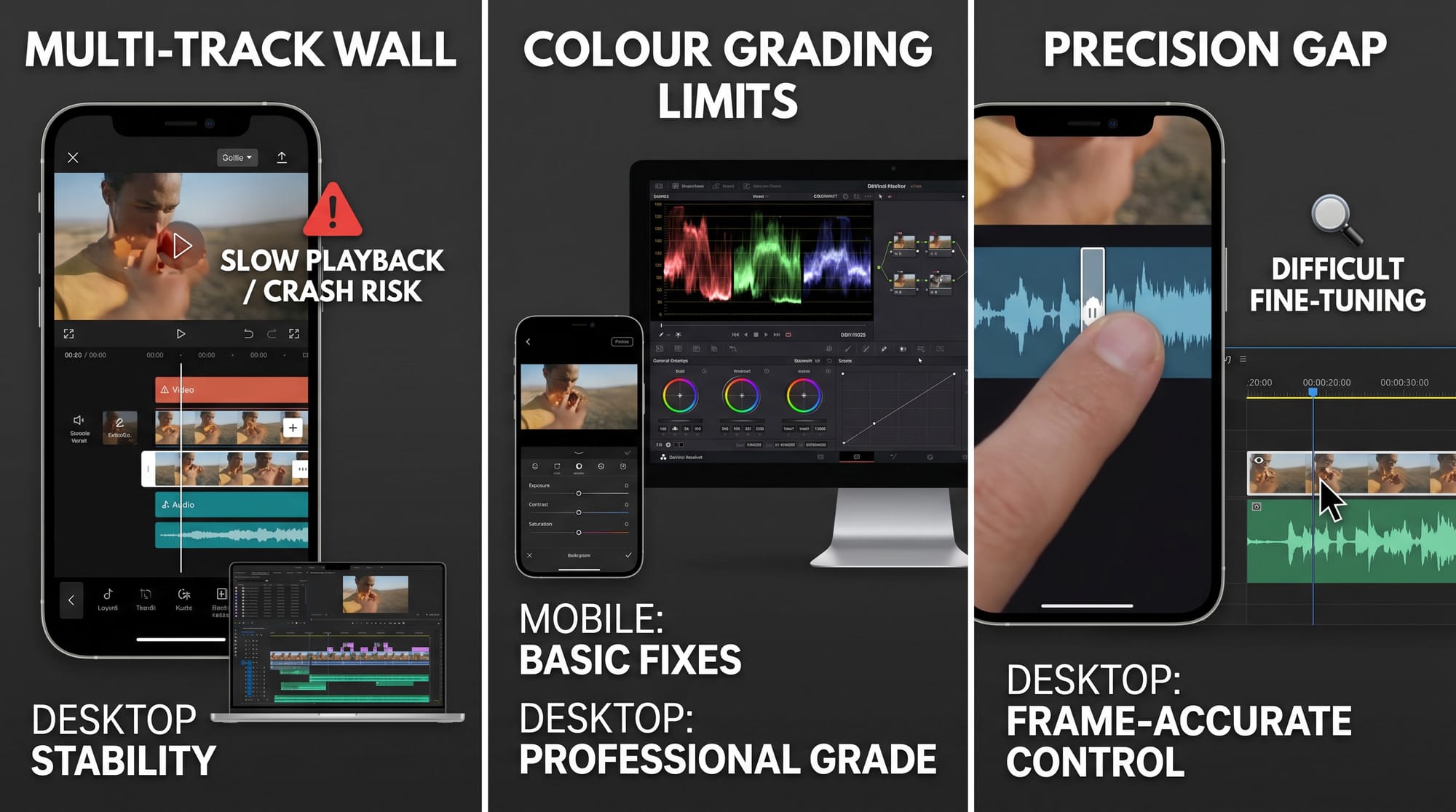
Colour work is the second wall. Mobile colour tools give you exposure, contrast, saturation, temperature — enough to fix a clip, not enough to build a grade. DaVinci Resolve's colour page — scopes, nodes, LUT management, selective colour qualification — doesn't exist in a phone app. If colour is a creative decision in your video, you need a desktop.
Precision is the third. Beat-syncing a cut to within two frames, fine-tuning an audio level on a specific word, nudging a text element precisely — all possible on a phone but every adjustment costs more time and attention than on a keyboard and mouse. On a 60-second clip it adds maybe 10 minutes. On a 5-minute video that compounds into an hour.
And the hardware ceiling. A 4K export on a phone heats the device, drains the battery, and on older hardware degrades quality through thermal throttling. One 7-minute 4K export on my previous iPhone took 41 minutes and left the phone uncomfortable to hold. The same export in DaVinci Resolve on a mid-range laptop took 9 minutes.
What desktop editing actually gives you
Desktop editing is not phone editing with a bigger screen. It's a different category of control.
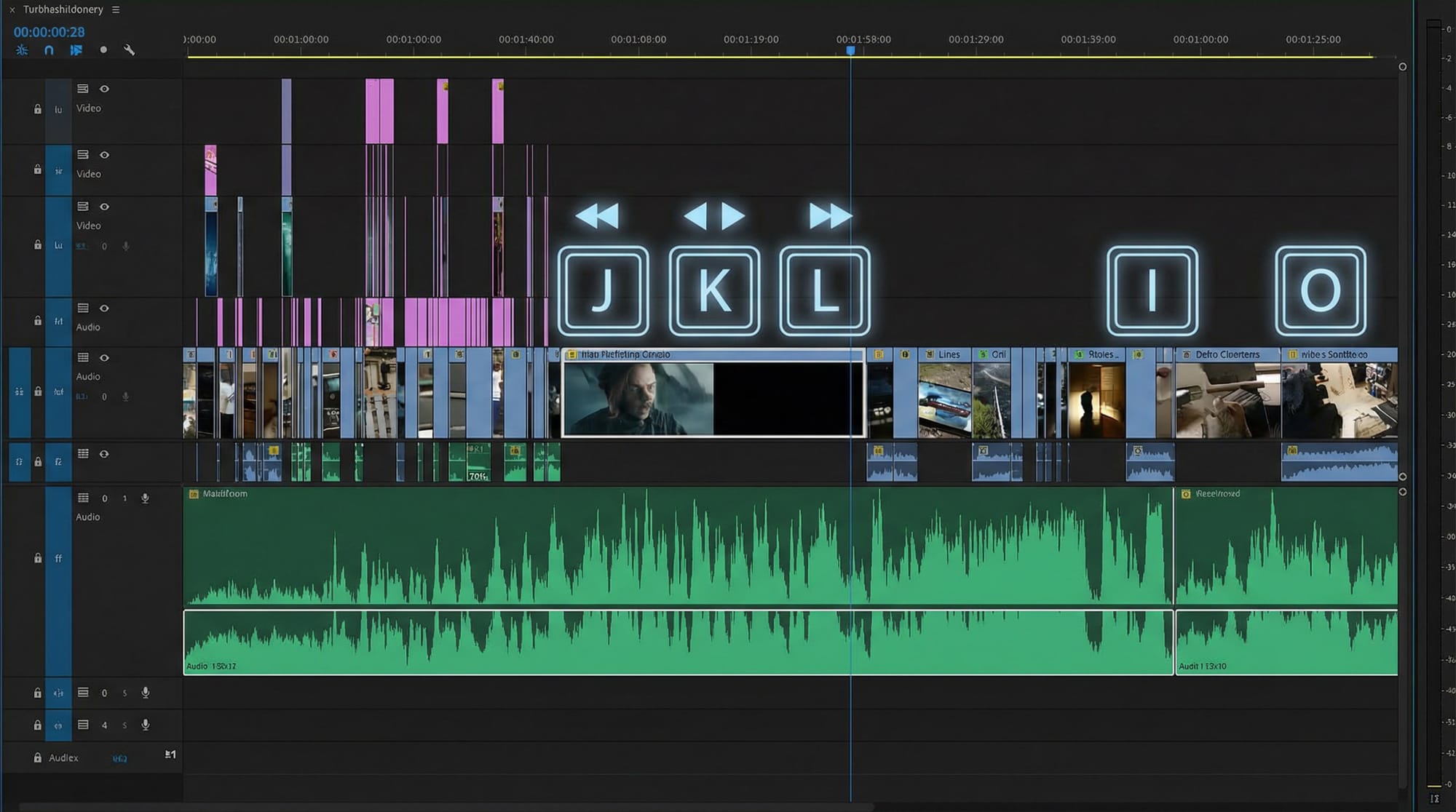
The timeline changes the pace of work. A desktop editor shows multiple tracks simultaneously, a wider waveform view, and edit points you can hit precisely with keyboard shortcuts — J/K/L for playback, I/O for in and out points. Editors who know their shortcuts work at a pace that touchscreen editing cannot reach on complex projects. I timed myself cutting a 3-minute performance edit on both platforms: 34 minutes on desktop, 58 minutes on phone for the same result.
Colour grading is where desktop separates from mobile entirely. DaVinci Resolve free gives you the full colour page — scopes, node-based grading, LUT management, colour matching across clips, skin tone isolation. This is the same toolset used on commercial music videos and film productions. Nothing on mobile comes close. More on the full colour workflow: How to Colour Grade for Social Media →
Audio tools on desktop are visible, precise, and professional. DaVinci Resolve's Fairlight suite is a full DAW inside the editor — EQ, compression, proper level metering, waveforms you can actually read. On a phone you're adjusting a single volume slider by feel.
Export control on desktop means choosing codec, bitrate, colour space, audio format, and resolution independently. On mobile you pick from presets. The settings that protect your video's quality through platform compression require desktop-level control. More on export: Best Export Settings for TikTok, Reels, and YouTube →
Comparison table
| Phone | Desktop | |
|---|---|---|
| Best for | Short-form, social-first, fast turnaround | Music videos, long-form, graded content |
| Practical length | Under 2 minutes reliably | No practical limit |
| Colour tools | Basic (exposure, saturation) | Professional (scopes, nodes, LUTs) |
| Multi-track | 2–3 tracks before slowdown | Unlimited |
| Beat sync precision | Approximate | Frame-accurate |
| Export control | Presets only | Full codec/bitrate/colour space |
| AI features | Strong, updated first | Improving but behind mobile |
| Learning curve | Low | Medium–high |
| Cost | Free (CapCut, iMovie) | Free (DaVinci) or subscription |
| Portability | Anywhere | Desk or laptop only |
The workflow that actually makes sense
Most creators who are serious about output use both — not because they can't choose, but because the two tools serve different moments.
Phone handles capture and rough cuts: film, check timing and pacing, post quick social content directly. Desktop handles the finish: colour work, multi-track edits, music videos, anything that needs to look intentional. On a recent music video project I roughed the structure in 18 minutes on my phone on the train, then finished the grade and beat sync on desktop in under two hours. Neither step could have been done as fast on the other platform.
What doesn't work is trying to do complex work on a phone because it's more convenient. Phone editing is fast for what it's fast for. Trying to grade a music video on a phone is using scissors when the project needs a knife. The results are possible and clearly wrong.
One thing worth knowing in 2026: CapCut updated its terms of service with language granting ByteDance a broad licence to use content you upload. For casual social content, many creators consider that fine. For client work or brand-sensitive projects, it's worth knowing before you build a workflow around it. For the full breakdown of desktop editor options including cost: Free vs Paid Video Editing Software → And for CapCut vs DaVinci specifically: CapCut vs DaVinci Resolve →
FAQ
Is it better to edit videos on phone or computer? Short-form content under 90 seconds for TikTok, Reels, or Shorts: phone is faster and the tools are purpose-built for the format. Music videos, multi-track projects, colour-graded content, anything over 2 minutes: desktop is more capable and more reliable. Most working creators use both.
Which is the best device for editing videos? For social-first short-form content: a recent iPhone or Android flagship with CapCut. For music videos and professional output: a laptop or desktop running DaVinci Resolve free. For a middle ground that handles more than a phone but stays portable: an iPad with LumaFusion or DaVinci Resolve for iPad, which has the full colour page and a proper multi-track timeline.
Is it better to edit on phone or computer in CapCut? CapCut mobile is faster for short-form content and gets AI features first. CapCut desktop handles longer timelines, more tracks, and doesn't overheat or crash on 4K projects. For anything over 2–3 minutes or with complex layering, CapCut desktop is more stable. For quick social content and trending templates, mobile is the faster choice.
Can you professionally edit videos on a phone? Yes, with limitations. LumaFusion on iPad is the closest to professional mobile editing — multi-track, proper colour correction, 4K export without watermark, one-time purchase. For music videos where colour and precision matter, a desktop editor like DaVinci Resolve is needed. Phone editing produces professional-looking output for short-form content. It produces compromised output for anything that requires a real grade.
What are the disadvantages of editing on a phone? Small screen slows precision work. Limited multi-track capability. No serious colour tools. 4K export generates heat and takes much longer than desktop. Storage fills fast with raw footage. Apps crash on complex timelines. DaVinci Resolve doesn't have a phone app. For a full comparison of mobile editing apps: Best Free Video Editing Apps for Mobile →
Is DaVinci Resolve available on mobile? DaVinci Resolve has an iPad app (free) with the full edit and colour page. No iPhone or Android app. The desktop version is more capable, particularly for colour and audio. If you're phone-first and considering DaVinci: start on iPad if you have one, otherwise go straight to desktop.
Which is better for Android video editing: phone or PC? For short social content: Android phone with CapCut, VN, or InShot. For serious projects: PC with DaVinci Resolve free. Android phones have fewer capable pro-grade mobile tools than iOS — LumaFusion is iPad/iPhone only. If you're on Android and want the best mobile option, VN Editor handles multi-track 4K without a watermark and is free.
How do I transfer footage from phone to desktop for editing? AirDrop for iPhone to Mac — fastest for large files. Google Drive or Dropbox for cross-platform. USB cable for very large files — most reliable for big projects. Avoid sending video through messaging apps or email: every platform compresses on upload and you lose quality before the edit even starts.