How to Sync Multiple Camera Angles
The third time I tried to sync a two-camera music video edit in DaVinci Resolve, the audio waveform method landed one camera 14 frames off. Looked fine in the timeline preview. Fell apart the moment I cut between angles on the chorus — the lip sync shifted visibly every time I switched. Fourteen frames is less than half a second. It's also enough to make the whole edit unwatchable.
Quick answer: sync using audio waveforms in your editor, or with a clap at the start of each take if cameras didn't share usable audio. In DaVinci Resolve: select all clips → right-click → Create Multicam Clip → Angle Sync: Sound. In Premiere Pro: select all clips in a bin → right-click → Create Multi-Camera Source Sequence → Audio. Everything below explains what to do when auto-sync fails — and it will fail on playback-driven shoots.
Before you edit: what you need from the shoot
Syncing multiple camera angles in post starts on set. How each camera captured audio on the day determines how much work the edit will be.
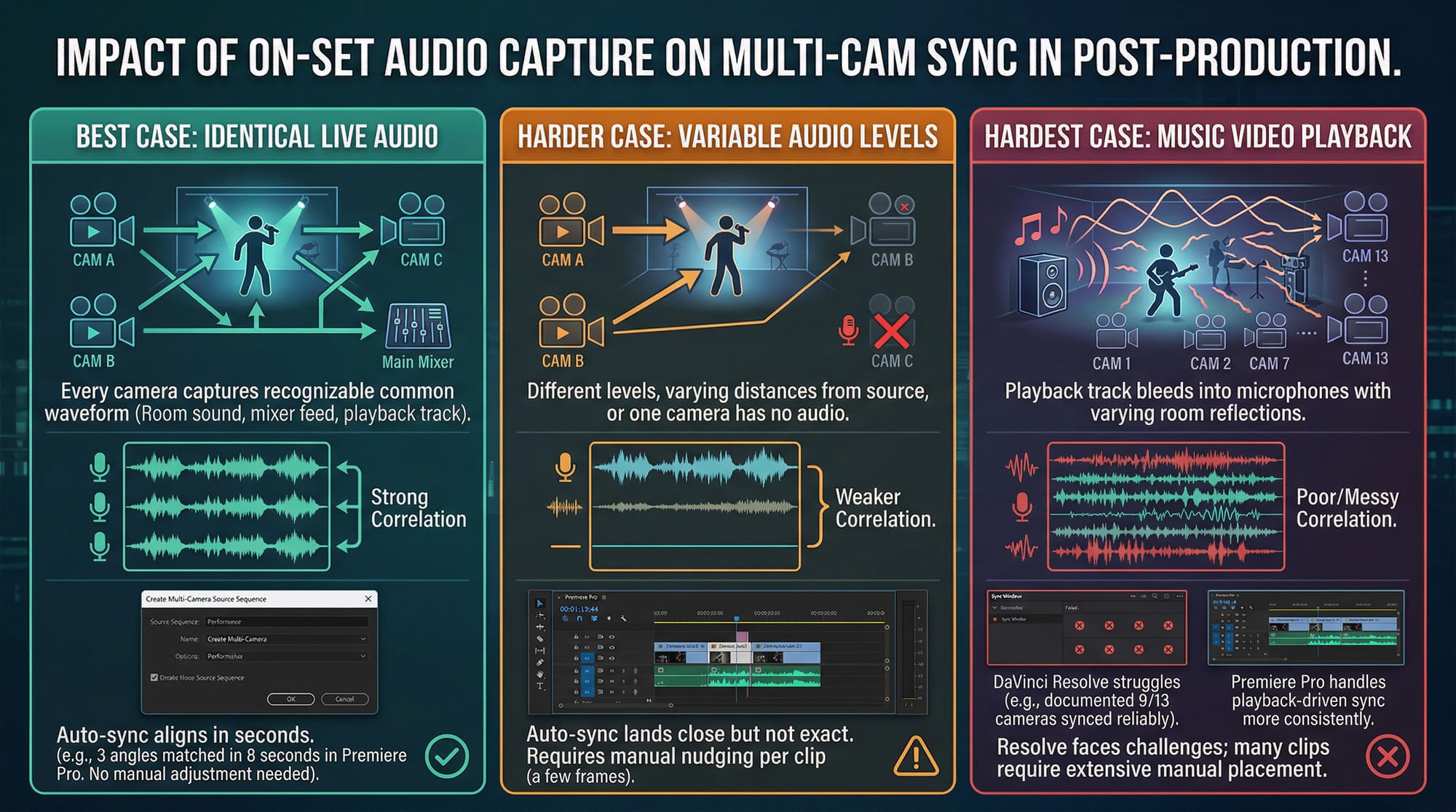
Best case: every camera recorded the same live audio — room sound, a feed from the mixer, or the playback track bleeding into the room. When every clip has a recognizable common waveform, any editing software aligns them in seconds. On a recent three-camera performance shoot the audio sync in Premiere matched all 3 angles in 8 seconds. No manual adjustment.
Harder case: cameras recorded at different levels, different distances from the sound source, or one camera had no audio. Waveforms exist but correlation is weaker. Auto-sync lands close but not exact — a few frames of manual nudging per clip.
Hardest case: music video against playback. The track bleeds into every microphone at different levels with different room reflections. DaVinci Resolve struggles here specifically — one editor on the Blackmagic Design forum documented a 13-camera playback shoot where Resolve synced only 9 cameras reliably. The other 4 required manual placement. Premiere Pro handles playback-driven audio sync more consistently in these conditions.
If you're shooting against playback and care about fast post: have someone clap on the first beat of every take, on camera, in frame. Three seconds on set saves twenty minutes per take in the edit. Also make sure every camera is recording at the same frame rate before you start — mismatched frame rates are the other main reason sync fails silently. Settings for matching frame rates across cameras: Best Camera Settings for Music Videos →
Audio waveform sync in DaVinci Resolve
This works well when cameras captured decent shared audio and is the most common approach.
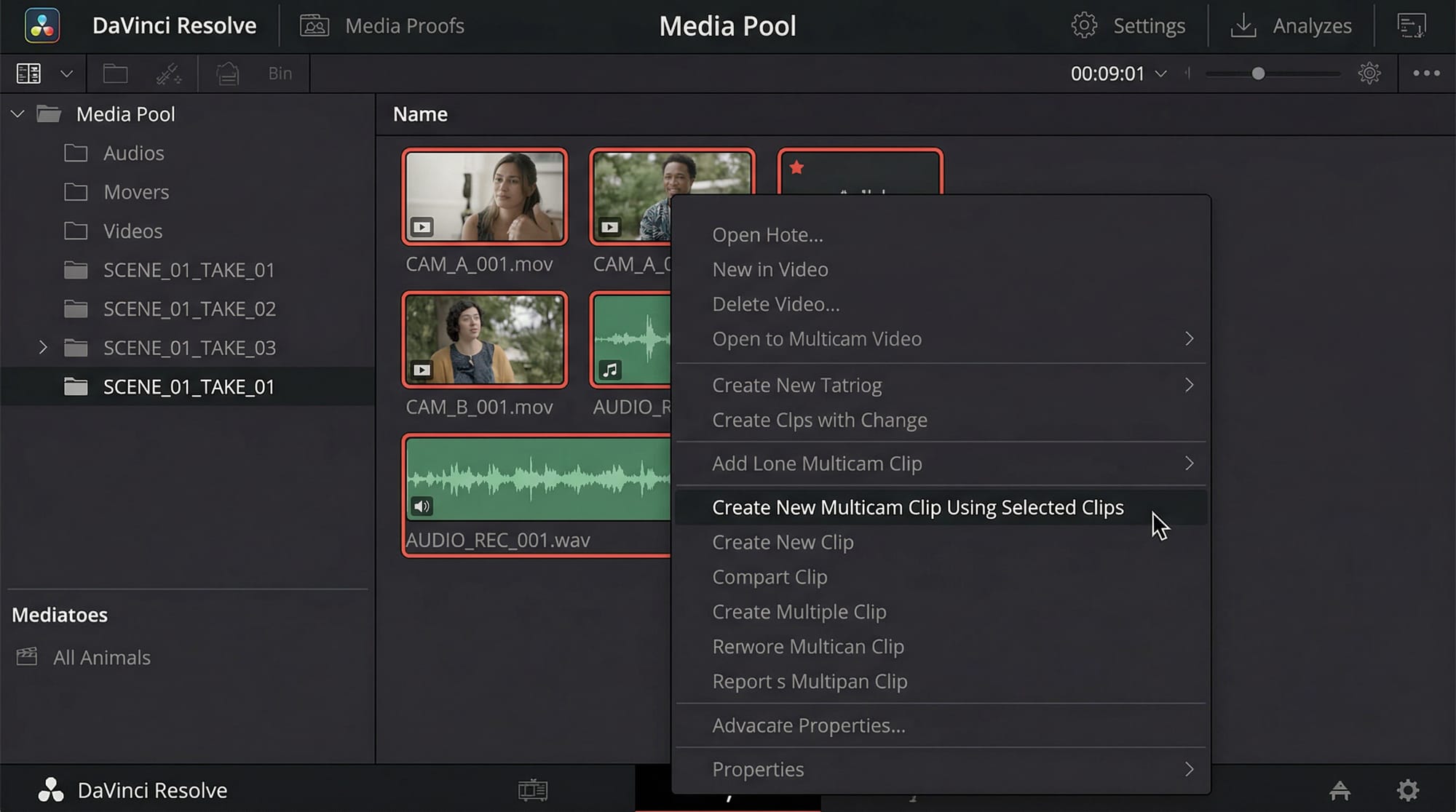
Import all clips into the Media Pool — keep them in a dedicated bin, one per scene or take. Select all the clips you want to sync. Right-click → Create New Multicam Clip Using Selected Clips. In the dialog: set Angle Sync to Sound, set Angle Name to Metadata: Camera if you labelled cameras during ingest.
Click Create. Resolve generates a Multicam Clip in your bin. Drag it to a new timeline. Switch the left viewer panel to Multicam and the right to Dual. You can now see all angles simultaneously and switch between them with number keys (1, 2, 3 for cameras 1, 2, 3) or by clicking the angle in the multicam viewer.
When it goes wrong: right-click the multicam clip → Open in Timeline. This expands all angles as individual tracks and lets you nudge them frame by frame. Zoom into the waveform display and look for a shared transient — a clap, a kick drum hit, the first beat of the playback track — then align the peaks manually. I've done this on 7 out of 12 clips on a playback shoot. Slow, but frame-accurate.
Resolve's multicam is weaker than Premiere and Final Cut Pro for complex workflows. For two or three angle edits it handles fine. For six or more angles on difficult audio, Premiere is the more consistent option. Per Larry Jordan's multicam guide for DaVinci Resolve — Jordan has trained editors across all three major NLEs — multicam in Resolve "works" but has inconsistencies with keyboard shortcuts and playback that Premiere doesn't have.
Audio waveform sync in Premiere Pro
Premiere's multicam audio sync is more consistent than Resolve's on difficult material, particularly playback-driven shoots. I ran the same 13-take performance footage through both on a recent project — Premiere synced all 13 correctly in one pass where Resolve had gotten 9.
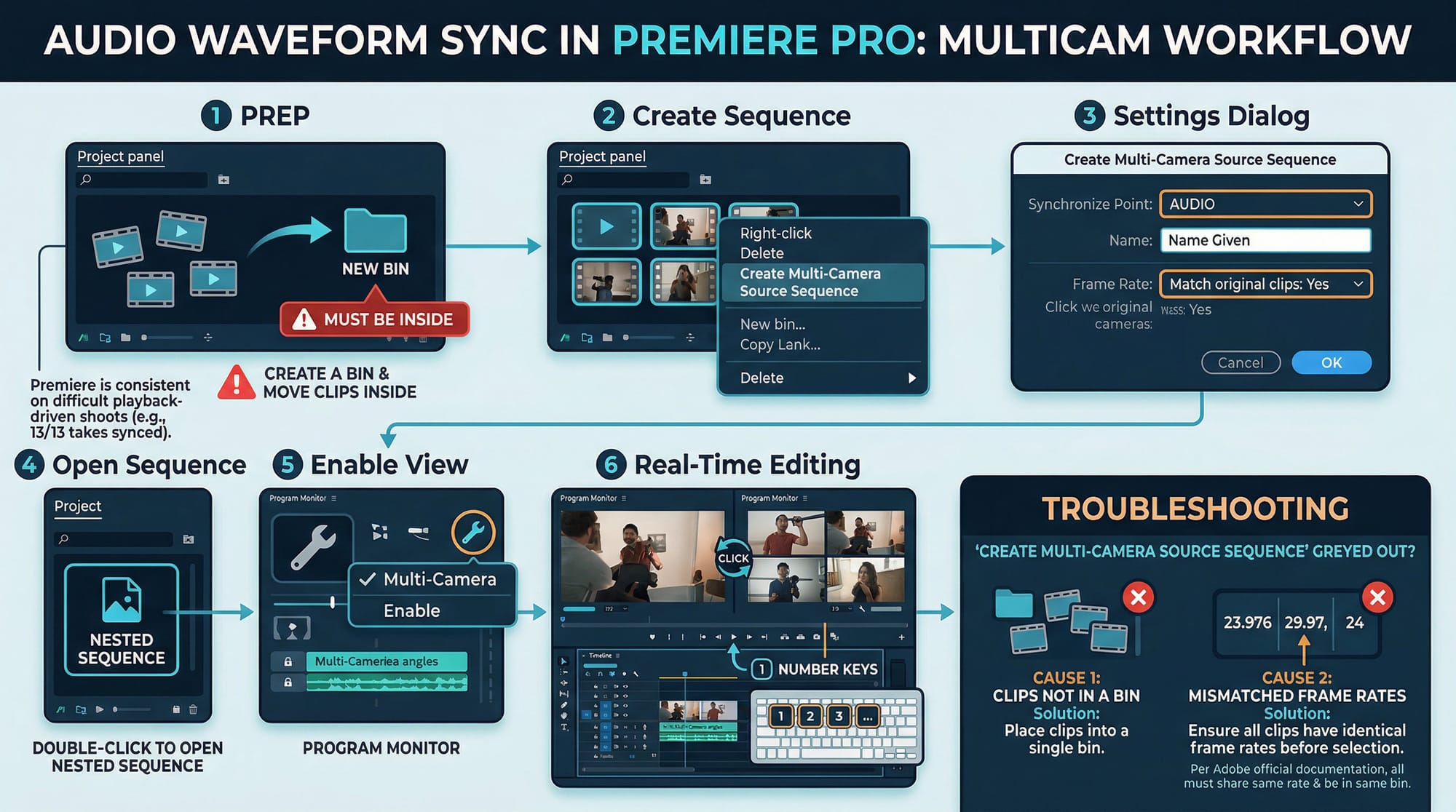
Import all clips. Create a bin and move them in — clips must be inside a bin for the multicam option to work. Select all clips → right-click → Create Multi-Camera Source Sequence. Synchronize Point → Audio. Set the sequence name, confirm the frame rate matches your clips, click OK.
Premiere creates a nested sequence. Double-click to open. Enable Multi-Camera view: Program Monitor → wrench icon → enable Multi-Camera. Play the sequence and click between angles in real time, or press number keys to switch cameras while the timeline plays.
"Create Multi-Camera Source Sequence greyed out" is the most common Premiere multicam issue. Two causes: clips are not inside a bin (loose in the project panel doesn't work), or clips have mismatched frame rates. Fix both before selecting. Per Adobe's official multicam documentation, all clips must share the same frame rate and be in the same bin for the sequence to generate correctly.
Clap sync: the manual method that always works
When audio sync fails, or when cameras had no useful shared audio, clap sync works on every editing software ever made.
Someone claps once clearly at the start of every take — hands together, single sharp clap, visible in frame from every camera that's rolling. That spike appears in every audio waveform simultaneously. In post you zoom into the waveforms, find the spike on each clip, and align the spikes manually.
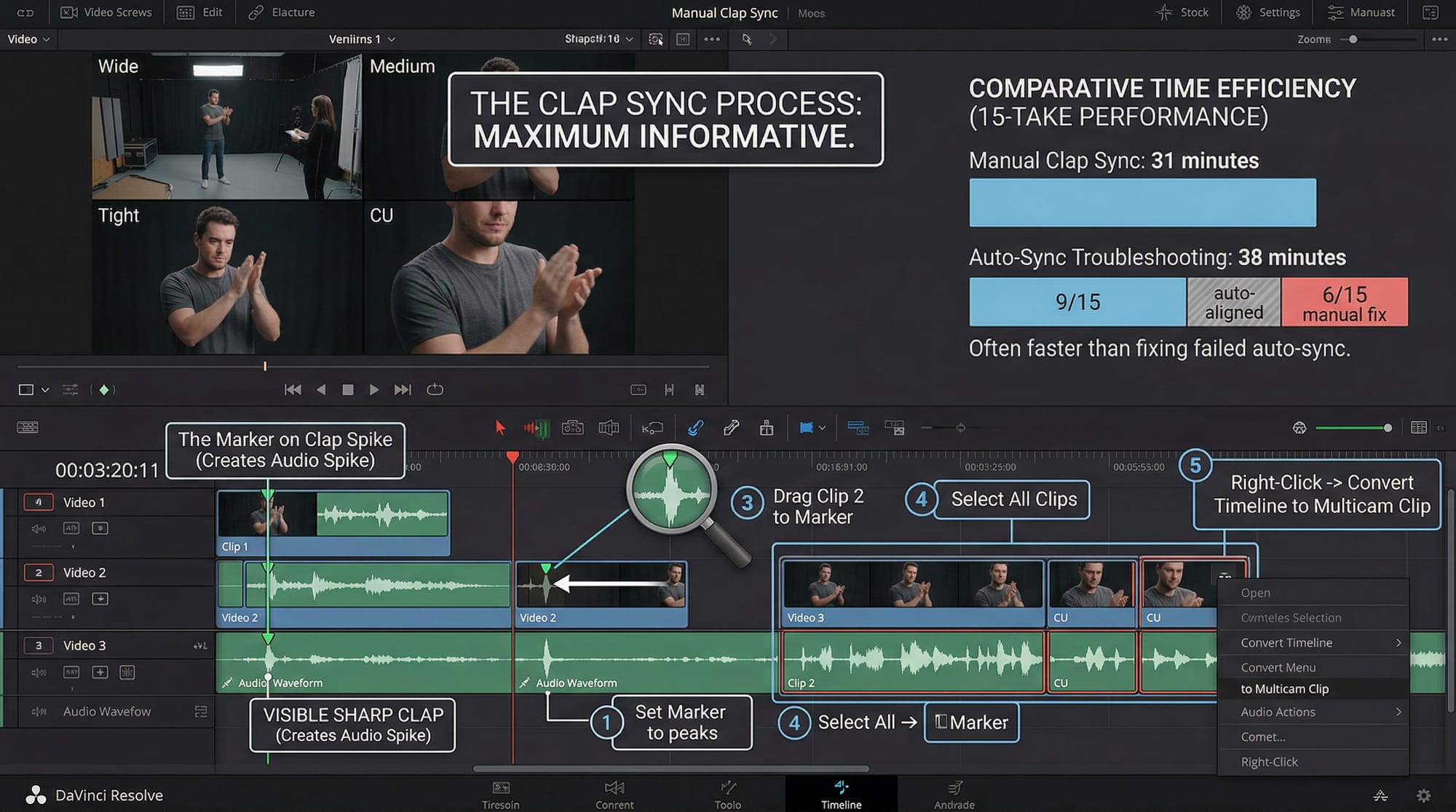
In DaVinci Resolve: place all clips on separate video tracks in the Edit timeline. Zoom in until individual waveform peaks are visible. Set a marker on the clap spike in clip 1. Drag clip 2 until its spike sits on the marker. Repeat per clip. Once aligned: select all clips → right-click → Convert Timeline to Multicam Clip.
On a 15-take performance edit I did this manually — all 15 takes, one clap spike at a time. It took 31 minutes. Auto-sync on the same footage got 9 of 15 right and left me manually fixing the other 6 anyway. Total time with auto-sync: 38 minutes. Clap sync up front is often faster than troubleshooting failed auto-sync after the fact.
Timecode sync: the fast method for bigger setups
If every camera recorded matching timecode — either set manually to the same value before each take, or jam-synced from a single timecode generator — sync in post is a single click.
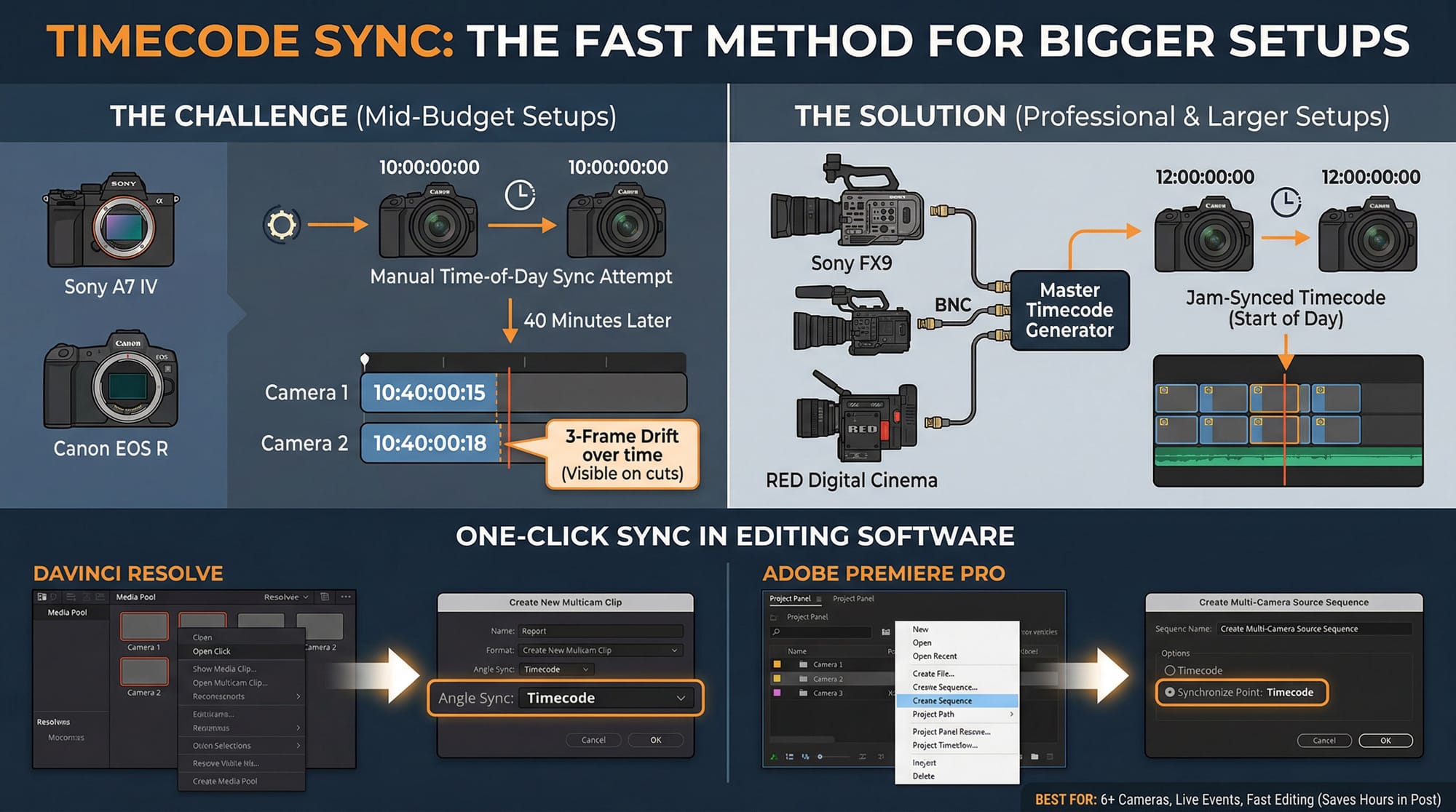
In DaVinci Resolve: Create New Multicam Clip → Angle Sync: Timecode. In Premiere Pro: Create Multi-Camera Source Sequence → Synchronize Point: Timecode. Clips snap into alignment instantly, audio quality irrelevant.
The practical catch: most mid-budget music video setups don't run timecode. Sony A7 series, Canon EOS R series, and DJI cameras don't sync timecode between bodies automatically. On a two-camera shoot for a recent single I tried setting both Sony A7 IVs to the same time-of-day timecode manually — they drifted 3 frames over 40 minutes of recording. Not enough for a quick cut edit but visible on a held two-shot. The cameras that actually support jam sync timecode — Sony FX series, Canon Cinema EOS, RED — are a different price bracket.
For two or three cameras on a controlled performance shoot, timecode sync is overkill. For six or more cameras or a live event where you're cutting fast between many angles, it's worth setting up — the time saved across twenty or thirty takes adds up fast.
Cutting between angles in the edit
Once you have a multicam clip in the timeline the actual editing workflow is the same in both Resolve and Premiere.
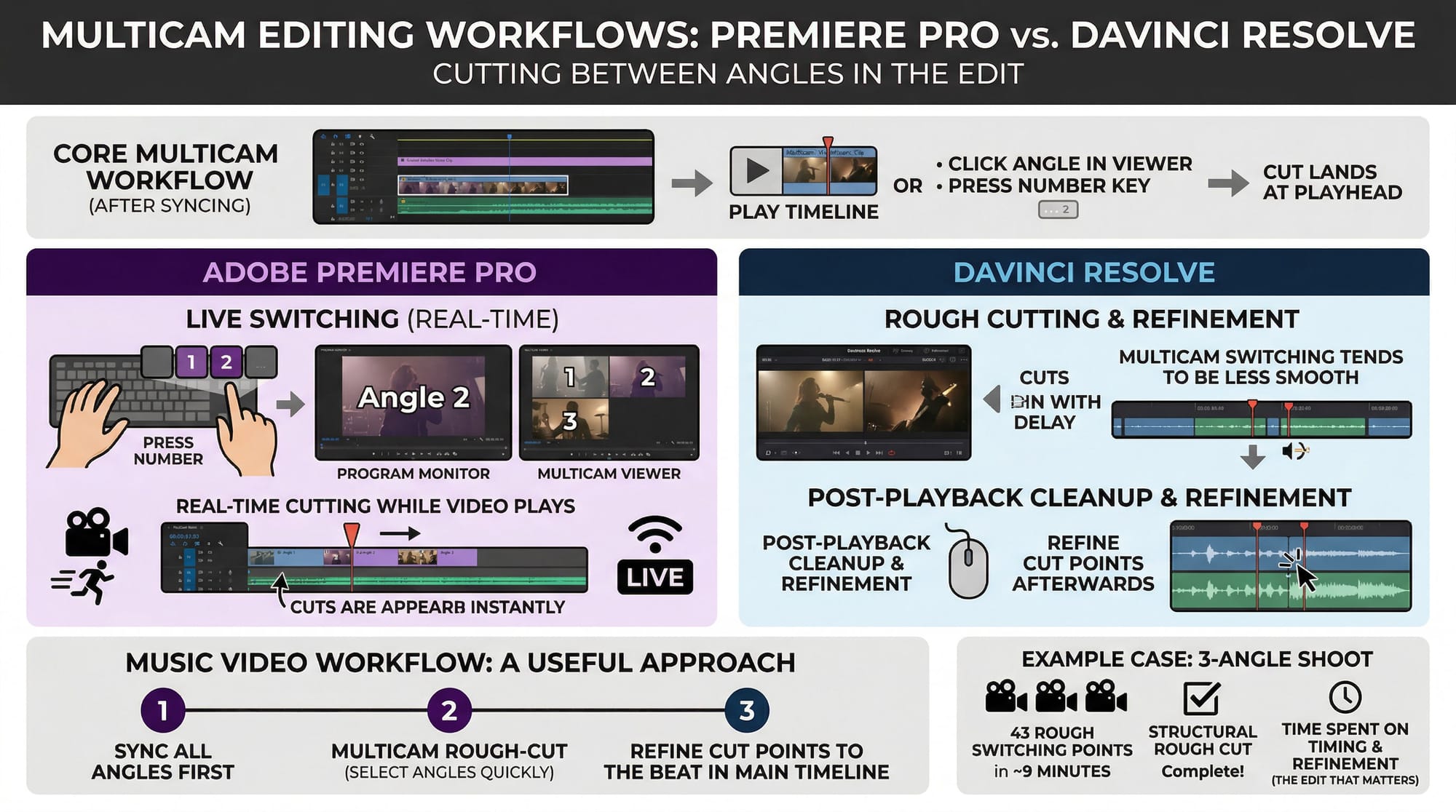
Play the timeline. Click the angle you want in the multicam viewer or press the corresponding number key — the cut lands at the current playhead position. In Premiere you can do this in real time while the video plays, called live switching. In Resolve multicam switching during real-time playback tends to be less smooth, so most editors make cuts during playback and clean up the edit points afterward.
For music video work the useful multicam workflow: sync all angles first, rough-cut the performance using multicam switching to quickly select angles, then refine cut points to the beat in the main timeline. On a three-angle shoot I placed 43 rough switching points in about 9 minutes using multicam, then spent the real editing time on timing and refinement. The multicam step gets you a structural rough cut — the edit that matters happens after. More on cutting to the beat once you have that rough cut: How to Edit a Music Video: Sync Cuts to the Beat →
What to do when nothing syncs
Some footage is genuinely hard: cameras with no audio, footage recorded in silence, material where each camera started rolling at a different time with no common event.
Visual sync: find a common visual event across cameras — a flash, a light switching on, a sudden performer movement — and align the frames manually. Zoom into the timeline until individual frames are visible. Works on any footage regardless of audio.
Manufacture a sync point after the fact: put a loud sharp sound on your speaker at the start of every take — a gun-shot sound effect, a single kick drum hit at maximum volume. Record it simultaneously across all cameras. Use those spikes the same way you'd use a clap. I've done this on 4 takes where the clap was forgotten on set — it works, and it saves the takes.
PluralEyes (Red Giant/Maxon): third-party software that syncs audio more aggressively than any NLE built-in tool. Handles material that DaVinci and Premiere fail on. Exports to Premiere XML. The workflow: sync in PluralEyes → export XML → import to Premiere → export FCP XML → import to Resolve. One extra step but it solves genuinely difficult sync problems. For the broader picture on editing workflow speed: How to Edit Videos Faster: 10 Workflow Hacks →
FAQ
How to sync multiple cameras in CapCut? CapCut has no native multicam sync tool. Place all clips on separate tracks, zoom into the audio waveform view, and drag clips manually until waveform peaks align. Works for two or three angle edits. For anything more complex, sync in DaVinci or Premiere first and bring a finished timeline into CapCut for finishing touches.
How to sync multi-camera in Premiere Pro? Import all clips into one bin, select them all, right-click → Create Multi-Camera Source Sequence → Synchronize Point: Audio. If the option is greyed out: clips aren't in a bin, or frame rates don't match. Fix both before selecting.
How do you sync multiple camera angles on iPhone? No native multicam tool on iOS. Shoot your takes, transfer footage to a desktop editor, sync there using audio waveforms or clap sync, then export and use the synced footage wherever needed. If you're editing on iPhone only, CapCut's manual waveform alignment works — tedious but functional for two angles. LumaFusion on iPad has a more capable multi-track timeline that makes manual sync easier than CapCut mobile.
Do you need two cameras for a music video? No. One camera shooting the same performance multiple times from different positions gives you the same editing flexibility as two simultaneous cameras — sync each take as a separate angle in multicam and cut between them. The only thing you lose is simultaneous reaction footage, which rarely matters on a solo performance shoot. More on making this work alone: How to Shoot a Music Video Alone (No Crew) →
How to match footage from different cameras in Premiere Pro? After syncing, go to the Color workspace and use Lumetri's Comparison View to visually match clips from different cameras. For Log footage, apply the appropriate technical LUT to each camera's clips before matching — mismatched colour spaces are the main reason multi-camera footage looks wrong together even after syncing. Full colour matching workflow: How to Colour Grade for Social Media →
What is the best free auto sync tool for multicam? DaVinci Resolve free covers most use cases at no cost. Premiere Pro's multicam sync is more consistent on difficult audio but requires a subscription. For footage that neither handles, PluralEyes (~$199 one-time, Red Giant/Maxon) is the industry standard for problem sync jobs.
Why is Create Multi-Camera Source Sequence greyed out in Premiere? Two causes: clips are not inside a bin, or clips have different frame rates. Move all clips into the same bin, confirm they share the same frame rate, then select and right-click again.
Does DaVinci Resolve have multicam editing? Yes, but it's weaker than Premiere Pro and Final Cut Pro for complex workflows. For two or three angle edits it works reliably. For six or more angles, or shoots with difficult audio like playback-driven performances, Premiere or Final Cut handles it more consistently.