Video Editing Glossary: 40 Terms Every Creator Should Know
The first time someone told me my edit needed more "headroom" I nodded like I understood and then spent twenty minutes quietly Googling it.
Editing has its own language and nobody hands you a dictionary when you start. You pick up terms from YouTube comments, from Reddit threads, from someone in a Discord server who mentions "J-cuts" like everyone obviously knows what that means.
This is the dictionary. Not every term that exists — just the ones that actually come up, explained the way I wish someone had explained them to me.
The timeline and basic editing
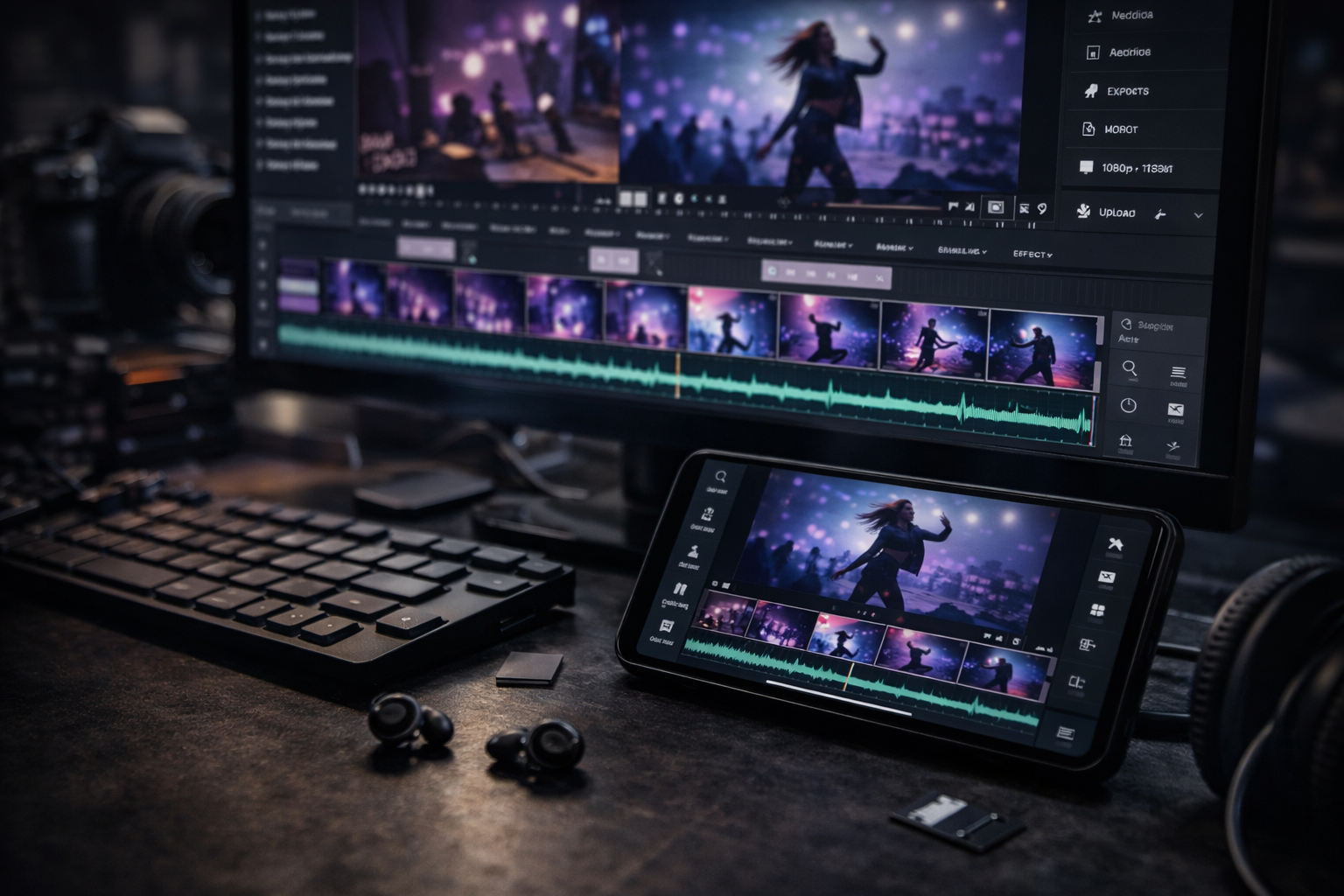
Timeline The horizontal strip in your editor where your video lives. Clips, audio, text — everything sits on the timeline in the order it plays. Left is earlier, right is later. Simple concept, but worth naming because every other term in this list happens inside it.
Playhead The thin vertical line that moves across your timeline as the video plays. Wherever the playhead is, that's the frame you're currently looking at. You drag it to jump around, or let it run to preview.
Trim Shortening a clip by moving its start or end point inward. You have ten seconds of footage but only need six — you trim four seconds off. The trimmed footage isn't deleted, just hidden. You can always pull it back.
Split Cutting a clip into two pieces at a specific point. One clip becomes two, both still on the timeline, with a cut between them. Every edit you make is essentially a series of splits.
Ripple Edit When you trim a clip and everything after it automatically shifts to close the gap. The alternative is leaving a black gap where the trimmed footage was. Ripple edits are how most people expect editing to work. The non-ripple version occasionally breaks beginners because suddenly there's a dead black hole in their video.
Razor Tool The cursor mode that turns your click into a cut. Switch to it, click on a clip, and it splits exactly where you clicked. Called the razor because it's conceptually cutting the film like a razor blade, which is how physical editing worked before computers.
In Point / Out Point The start (In) and end (Out) of the section of a clip you want to use. You mark the In point where you want the clip to begin, the Out point where you want it to end, and your editor knows to only use that section. Common shortcut: I for In, O for Out.
Sequence / Project The container for your edit. Your timeline lives inside a sequence. One project can have multiple sequences — useful if you're cutting different versions of the same video.
Cuts and transitions
Hard Cut One clip ends, the next begins. No transition, no fade, nothing in between — just an immediate switch. This is the default cut. Most professional editing is almost entirely hard cuts. If you're putting a transition between every clip, you're probably overusing them.
Jump Cut Two clips of the same subject from the same angle, with a gap of time between them. The subject appears to "jump" slightly. On YouTube it's used constantly to remove pauses and dead air from talking-head videos. In music videos it can feel jarring or energetic depending on how intentional it looks.
Match Cut A cut where something in the outgoing shot visually matches something in the incoming shot — shape, movement, colour, subject. The most famous example is the bone thrown in the air cutting to a spaceship in 2001: A Space Odyssey. In music videos, match cuts feel sophisticated and intentional. They take planning to pull off.
Smash Cut An abrupt, jarring cut — usually from something quiet to something loud, or something slow to something fast. Used for emphasis or shock. The impact comes from the contrast between the two sides of the cut.
Whip Pan A transition where the camera pans so fast it blurs, and the next clip begins with an equally fast blur that resolves into the new shot. The two blurs are edited together to look like one continuous movement. Popular in music videos and vlogs. Achievable in post without any special camera movement using blur effects, though it looks better when shot deliberately.
Cross Dissolve The outgoing clip fades out as the incoming clip fades in simultaneously. The two overlap briefly. Signals a passage of time, a change of mood, a soft transition. Often overused by beginners because it feels "professional." Usually a hard cut is better.
Fade to Black The clip fades to a black frame. Used at the end of videos, or to mark a significant break between sections. Fade from black is the opposite — opening on black and slowly revealing the image.
L-Cut The audio from the outgoing clip continues playing after you're already watching the next clip. You're looking at scene B but still hearing the audio from scene A. Creates smooth, cinematic transitions. The L shape comes from how it looks on the timeline — the audio layer extends past the video layer.
J-Cut The audio from the incoming clip starts before you see it. You're still watching scene A but already hearing the audio of scene B. Then the video catches up. The J shape is the audio layer starting early on the timeline. Together with L-cuts, these are the two moves that separate edits that feel smooth from edits that feel choppy.
Video and image

Aspect Ratio The proportional relationship between width and height. 16:9 is the standard horizontal video — YouTube, most TV screens. 9:16 is vertical — TikTok, Reels, Shorts. 1:1 is square — older Instagram posts. Get this wrong and your video has black bars, or gets cropped, or looks stretched.
Resolution How many pixels are in your video. 1080p means 1920×1080 pixels. 4K means roughly 3840×2160 pixels — four times as many pixels as 1080p. More pixels means more detail, larger file sizes, more processing power required. For most social media content, 1080p is completely sufficient.
Frame Rate How many still images your video shows per second. 24fps looks cinematic — it's what films use. 30fps looks more like TV. 60fps looks very smooth and real, often used for gaming content or sports. Slow motion is achieved by filming at a high frame rate (120fps, 240fps) and playing it back at 24 or 30fps. The mismatch is what creates the slow-motion effect.
Color Grading Adjusting the colours of your footage to achieve a specific look or mood. Different from colour correction (fixing problems) — grading is making a creative choice about how the image feels. The warm golden tones in a nostalgic video, the cold blues in a tense scene, the bleached-out look in certain music videos — that's colour grading.
Color Correction Fixing the technical problems in your footage before you grade it. If the white balance is off, if the exposure is wrong, if one shot looks different from another shot of the same scene — colour correction makes them match and look natural. You correct before you grade.
LUT (Look Up Table) A preset that applies a colour grade to your footage in one click. LUTs are files — you download them and import them into your editor. Some LUTs emulate film stocks. Some are created by colourists and sold as packs. Think of them as Instagram filters but more powerful and more precise. A LUT applied to badly exposed footage still looks bad. They work best on properly shot, corrected footage.
Exposure How bright or dark your footage is. Overexposed footage is too bright — details in the highlights are lost, things "blow out" to white. Underexposed footage is too dark — details in the shadows disappear into black. Correct exposure is when you can see detail in both the bright and dark areas of the frame.
White Balance The colour temperature of your footage. Footage shot indoors under tungsten lights has a warm, orange cast. Footage shot on a cloudy day has a cool, blue cast. White balance correction neutralises this so that white objects actually look white. Wrong white balance is one of the most common reasons footage from two shots of the same scene look completely different from each other.
B-Roll The supplementary footage that plays while you hear audio from something else — an interview, a voiceover, a song. If someone says "we drove through the city" and you cut to shots of city streets, those city street shots are B-Roll. In music videos, almost everything is B-Roll in some sense — the performance footage is A-Roll, and everything else cuts in over it.
Audio
Waveform The visual representation of audio on your timeline. Loud sounds make tall, fat waveforms. Quiet sounds make thin, flat ones. Looking at the waveform lets you find beats, locate pauses, and make precise audio edits without having to listen to the whole clip. This is what you're looking at when you sync cuts to a beat.
Gain The volume of an audio clip. Turning up the gain makes it louder. Simple concept, slightly confusing name. Different from "volume" in some editors — gain is the input level, volume is the output level — but for most purposes they do the same thing.
Ducking Automatically lowering the volume of one audio track when another becomes active. Most common use: lowering background music when someone starts speaking, then raising it again when they stop. Some editors do this automatically. Others require you to do it manually with keyframes.
Keyframe (audio) A point on the audio timeline where you set a specific volume level. Add a keyframe at the start of someone speaking at 30% volume, add another keyframe at the end at 100%, and the volume ramps smoothly between them. This is how you create fades, dips, and swells manually.
Effects and motion
Keyframe (video) Same concept as audio keyframes but for visual properties — position, scale, opacity, rotation. Set a keyframe where you want something to start, set another where you want it to end, and your editor interpolates everything in between. This is how you create movement in clips that were filmed static, or animate text across the screen.
Speed Ramp Changing the playback speed of a clip smoothly rather than all at once. The clip might start at normal speed, slow to 20% at the peak of a movement, then accelerate back to full speed — all within a few seconds. The "ramp" is the gradual transition between speeds. Different from just "slow motion," which applies a single constant speed to the whole clip.
Freeze Frame Holding one specific frame of video as a still image. The video pauses, the audio continues (or also pauses, depending on the edit). Used for dramatic emphasis — landing on a specific moment and letting it breathe before the video continues.
Opacity How transparent a clip is. 100% opacity is fully visible. 0% is invisible. 50% lets whatever is behind it show through. Used to create double exposures, overlay effects, and fades. When you make a clip fade to black, you're either reducing its opacity or adding a black layer on top with increasing opacity.
Chroma Key (Green Screen) Removing a specific colour from footage — almost always green — and replacing it with another image or background. The subject is filmed in front of a solid green screen. The editor tells the software "make all the green transparent" and replaces it with whatever background you want. Works best with even lighting and a colour that doesn't appear on the subject.
Motion Blur The blur that naturally occurs when something moves fast across a camera sensor. Fast edits and camera movements look more cinematic with slight motion blur. At very high frame rates (120fps+), motion blur disappears — the image is too sharp and fast movements look almost unreal. Some editors let you add artificial motion blur in post to compensate.
Export and delivery

Codec The method used to compress and store your video. H.264 is the most common — small file sizes, plays everywhere, what most platforms want. H.265 (also called HEVC) is more efficient — even smaller files at the same quality — but not universally supported. ProRes is a high-quality codec used in professional workflows — large files, excellent quality, mainly for editing rather than delivery.
Bitrate How much data your video uses per second, measured in Mbps (megabits per second). Higher bitrate means more data, better quality, larger file. Lower bitrate means compression artifacts — the blocky, smeared look of a video that's been compressed too hard. For YouTube, 10–20 Mbps at 1080p is generally fine. For archiving your own work, go higher.
Render The process of your editor calculating and producing the final video file. While you're editing, your editor is playing a live preview — rendering means it's doing the full calculation for every frame and writing it to a file. Render time depends on your computer's processing power, the length of the video, and how complex the effects are.
Export Saving your finished edit as a video file that exists outside your editing software. Render is the process; export is the result. Most editors combine these into one step — you hit Export, it renders, it saves a file. The settings you choose at this stage determine the quality and compatibility of the final video.
The ones that sound similar but aren't
Trim vs Cut: Trimming shortens a clip from its edges. Cutting splits a clip into pieces at a specific point. You trim the fat; you cut the whole thing.
Colour Correction vs Colour Grading: Correction fixes technical problems and makes footage look neutral and natural. Grading applies a creative look on top of that. You always correct before you grade.
Gain vs Volume: Gain is the input signal level. Volume is the output. In practice, for most editors, they do the same job — but gain is what you adjust on individual clips, volume is often a master control.
Codec vs Format: The format is the container (MP4, MOV, AVI). The codec is what's inside it doing the compression (H.264, ProRes). An MP4 file can contain H.264 or H.265 video. The format is the box; the codec is what's in the box.